
The VoiceStack Agent Application helps agents manage calls, messages, voicemails, and tasks from one dashboard. It streamlines daily workflows, ensures timely follow-ups, and improves overall productivity by keeping all customer interactions organized in a single place.
Dialpad
The Dialpad allows agents to make outbound calls directly from the Agent Application.
1. Select the Country Code.
2. Enter the phone number in the dialpad to place a call.
3. Choose a Caller ID for outbound calls.
4. Switch to the Extensions tab to search and call a team member from the dropdown list.
Activity
The Activity section helps agents to:
View all call activity such as voicemails, missed calls, and inbound calls.
Listen to voicemails and read transcripts directly without switching screens.
Access call recordings and AI-generated summaries to quickly understand each conversation.
Take immediate action, call back, send a message, mark as done without interrupting the workflow.
To Do AI prioritizes follow-ups, analyzes calls, identifies pending actions, and suggests next steps.
Call History
The Call History provides a comprehensive record of all communication activities for each agent using the Agent Application. These calls are associated with specific agent extensions, and each agent can access their personal call history when they log into the application. This feature helps you to:
- Review every patient interaction across various date range.
- Use it as a reference to confirm details, check timelines, or revisit commitments.
- Customize call history data according to different dates.
Opportunities
The Opportunities section displays all potential patient interactions that can be converted into appointments or treatments.
Presented in a Kanban-style board, it organizes opportunities into stages such as Pending Follow-up, Attempted, Ignored, Not Converted, and Converted giving a clear view of progress.
Each card shows key details like contact information, last contact date, lead status, treatment type, and assigned agent, along with conversion likelihood.
Filters at the top allow users to sort data by priority, reason not booked, insurance, call direction, contact type, or lead status.
Agents can also switch between Board and List views for flexible tracking and management.
Missed Calls
This is the filtered list of callers who could not be reached.
Displays all unanswered calls, categorized into All, Open, and Closed tabs.
Each entry shows Date/Time, Contact, Source, Status, Missed Call Type (Direct or SVM), and Contact Type.
Using the three dot menu (⋮), agents can mark the call as Responded, Ignored, or add to To-Do for later follow-up.
Voicemails
The Voicemail feature helps you to:
- Listen to voicemails, and see the caller details in one view.
- Click to call back or assign the voicemail to a team member if needed.
- Ensure no patient concern is missed even when you are away from your desk.
Text Messages
Some callers prefer texting, and this tab keeps those chats organized. This feature helps to:
- Read texts and respond directly from the application.
- Keep all SMS conversations documented for clarity.
- Reduce call volume by handling simple requests via text.
To Do
This helps agents create, manage, and track follow-up tasks efficiently, ensuring no important action is missed.
- Create new tasks, assign priority and categorize.
- See smart action items created from patient calls and voicemails.
- Get nudges for follow-ups, appointment confirmations, or unresolved concerns.
- Check off tasks as you complete them, helping you stay focused and productive all day.
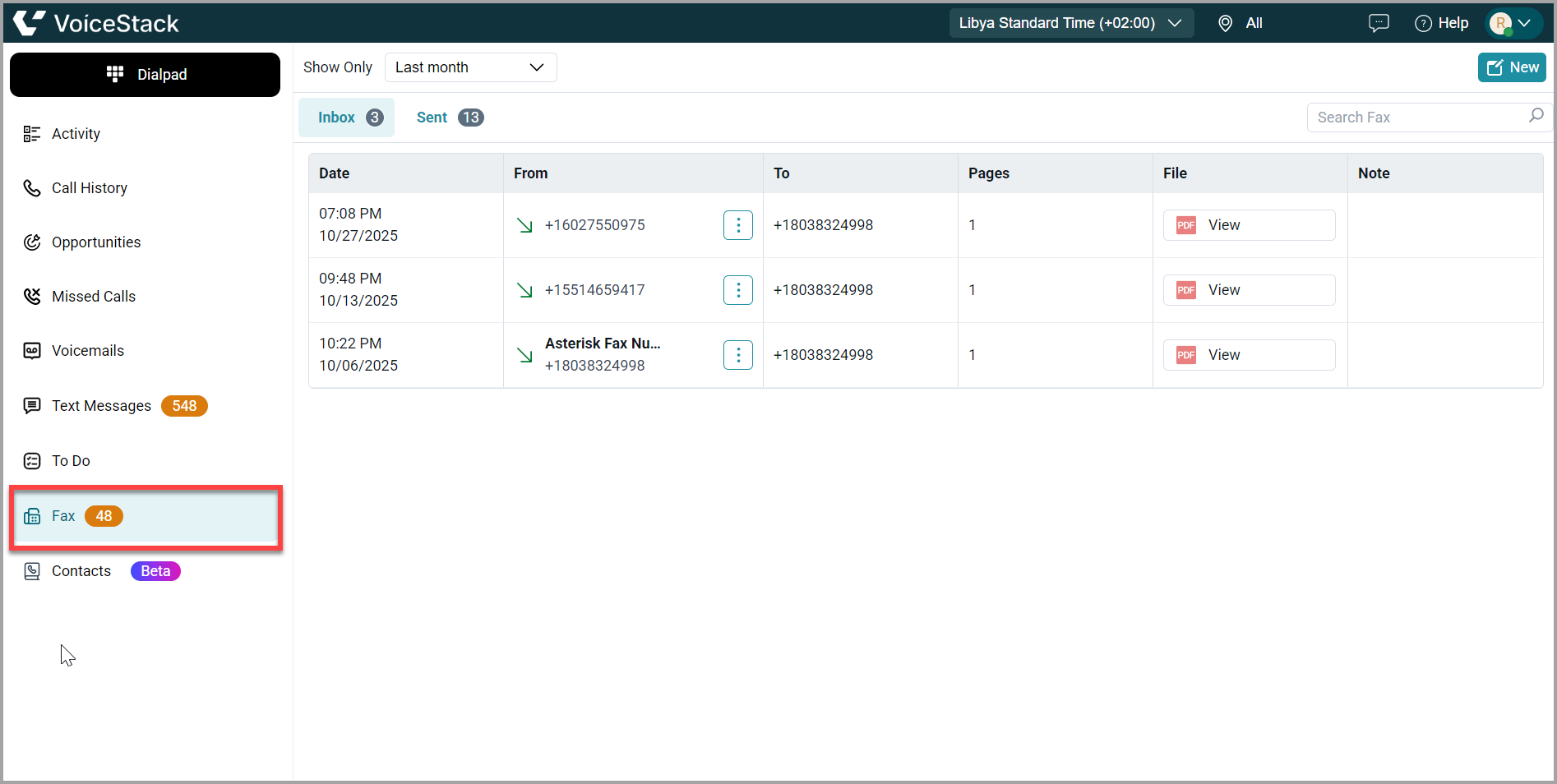
Fax
Contacts
The Contacts section gives you easy access to all your saved contacts in one place.
View all contacts along with their Status, Location, and Group.
Create new contacts or organize them into groups for better management.
You can also edit, call, or message any contact directly.
Check the Blocked tab to view contacts you have restricted.
Support / Contact
Need further help? Contact support@voicestack.com or call 407-833-6436.